How to Install Hot Player on Fire Stick – Step-by-Step Guide
Step 1 – Prepare Your Device for Hot Player Installation
Before installing the Hot Player APK, your device must be ready to accept external apps.
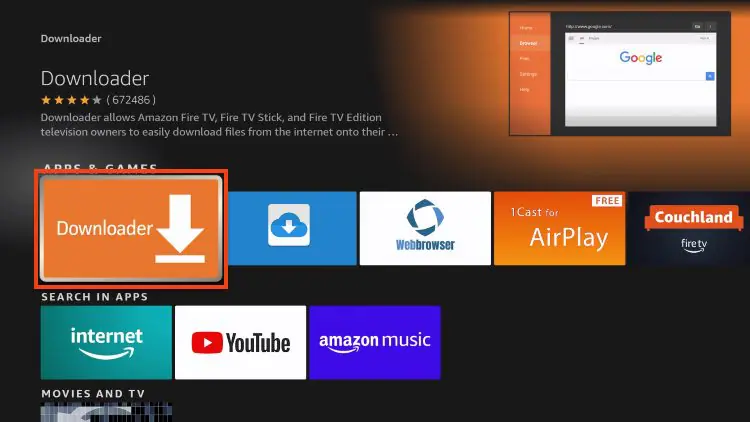
To do this, you first need to install the Downloader app. Downloader is a safe and widely used tool that allows you to download and install third-party applications directly on your Fire TV Stick.
Once Downloader is installed, you’ll be able to continue with the Hot Player installation in the next steps.
Install Downloader
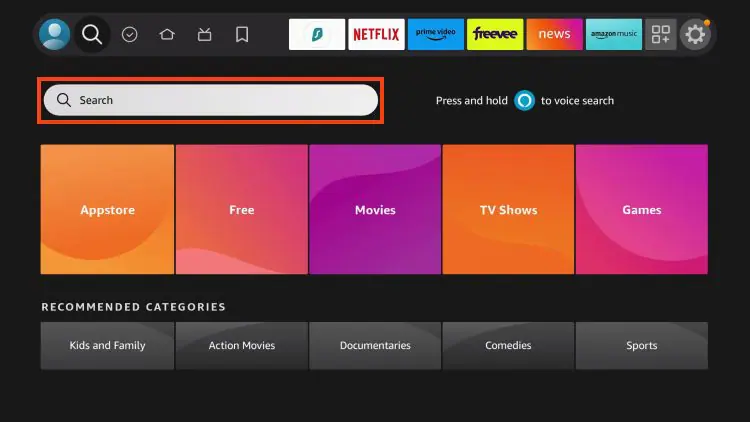
1. From the Fire TV home screen, open Search
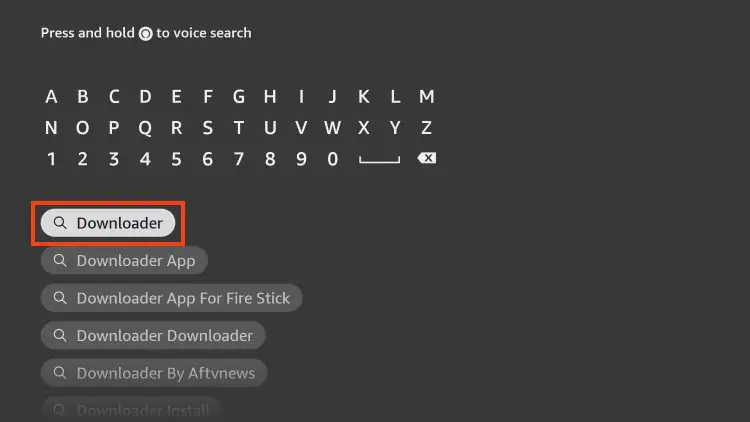
2. Type Downloader
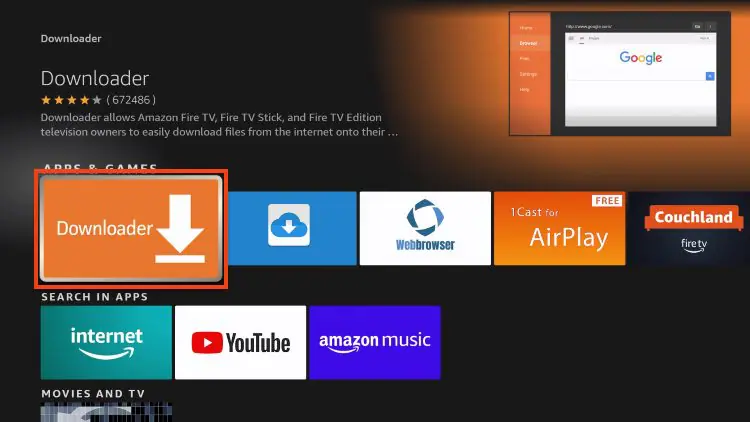
3. Select the Downloader app from the results
4. Click Download / Get
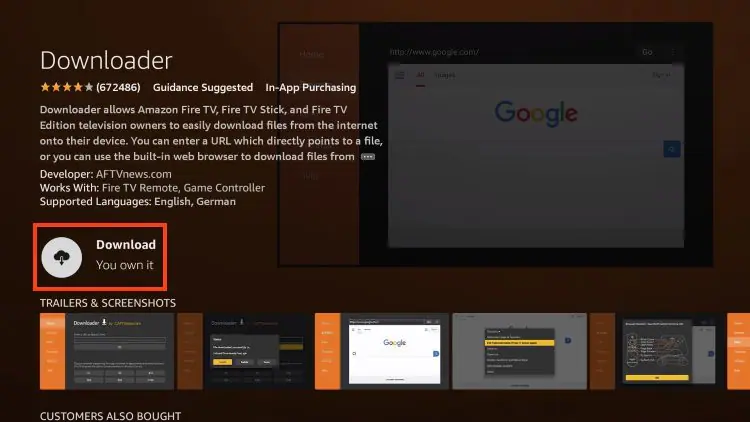
5. Wait for installation to complete
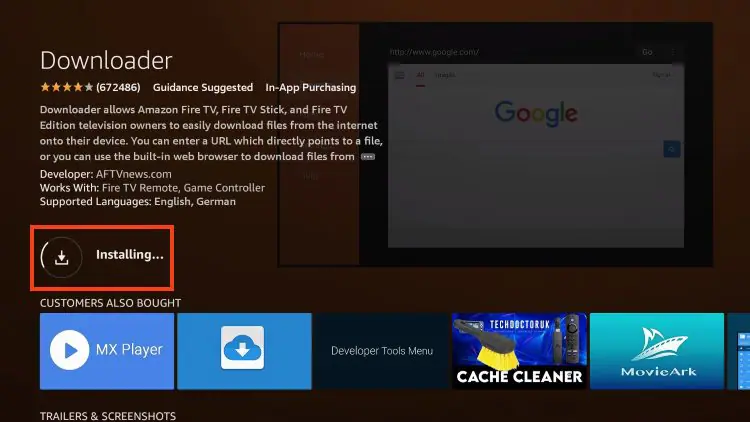
Once installed, Downloader will be ready to use.
Step 2 – Allow Apps from Unknown Sources
To install Hot Player, Fire TV must allow third-party apps.
Enable Unknown Apps
1. Go to Settings → My Fire TV
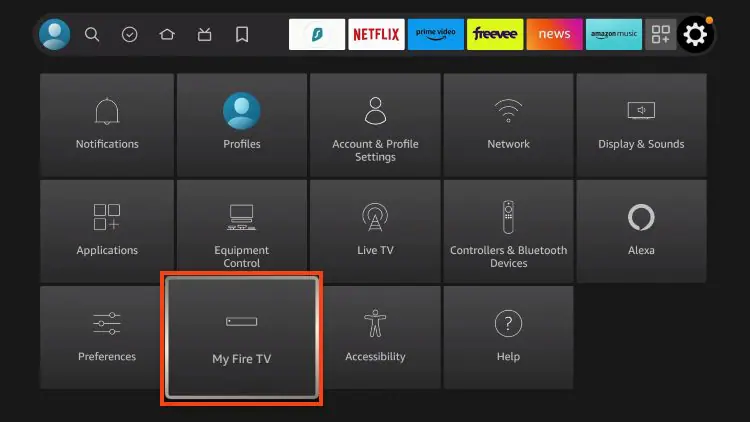
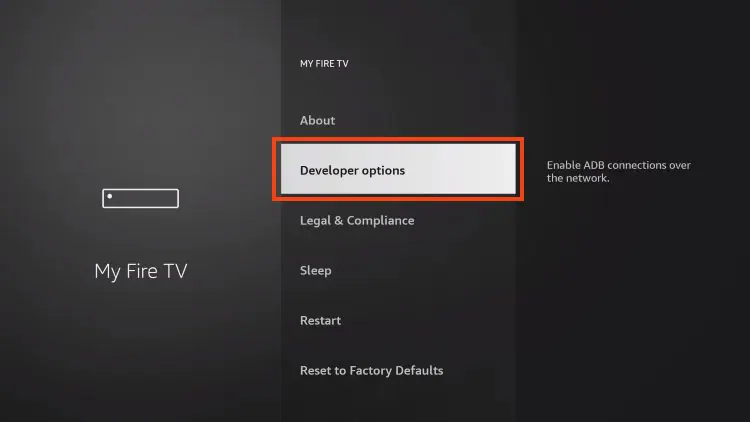
2. Open Developer Options
3. Select Install Unknown Apps
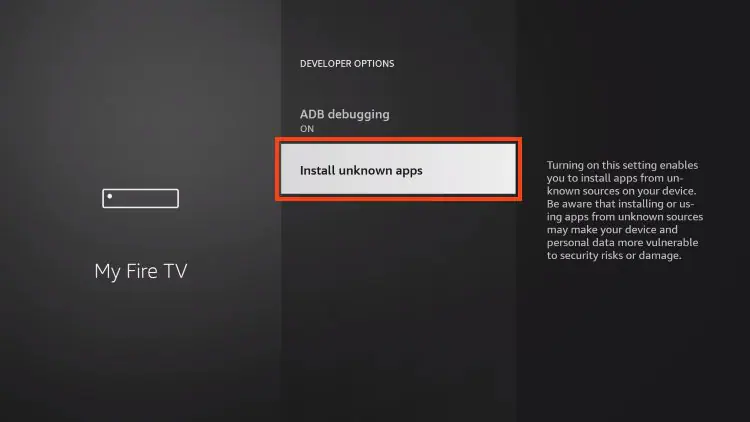
4. Turn Downloader → ON
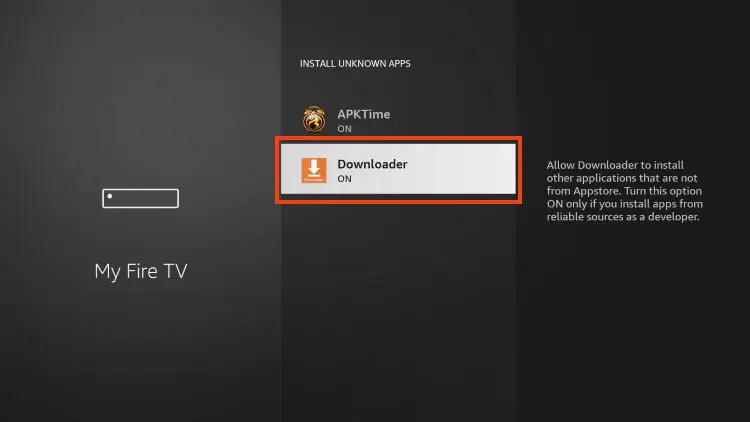
Your Firestick can now install external IPTV apps.
Step 3 – Download and Install Hot Player
Now you’re ready to install the app.
Installation Steps
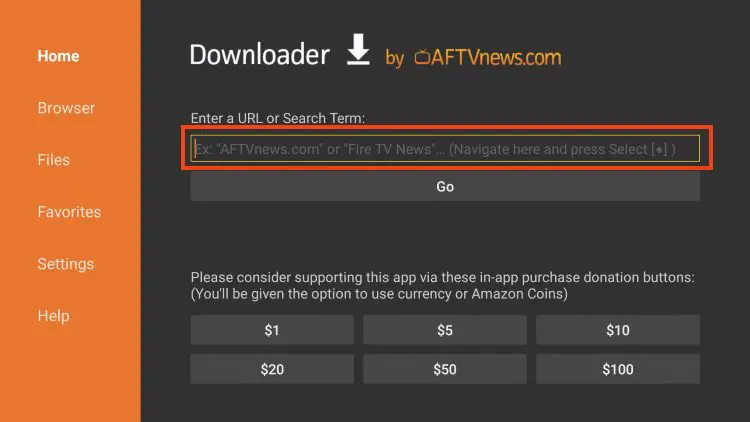
1. Open Downloader
2. Select the URL field
3. Enter this download code:
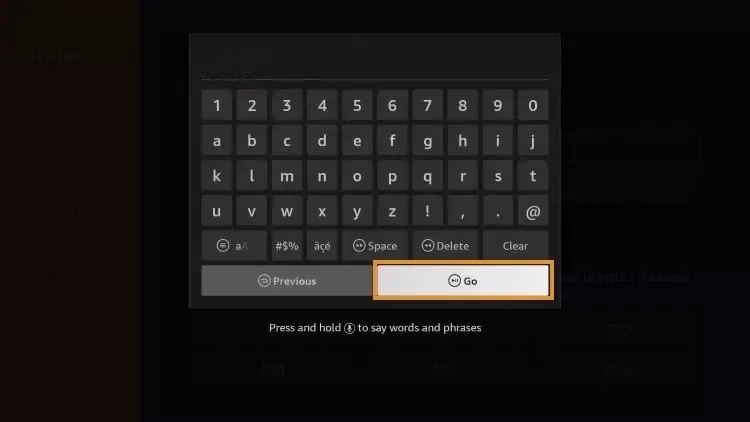

4. Click Go
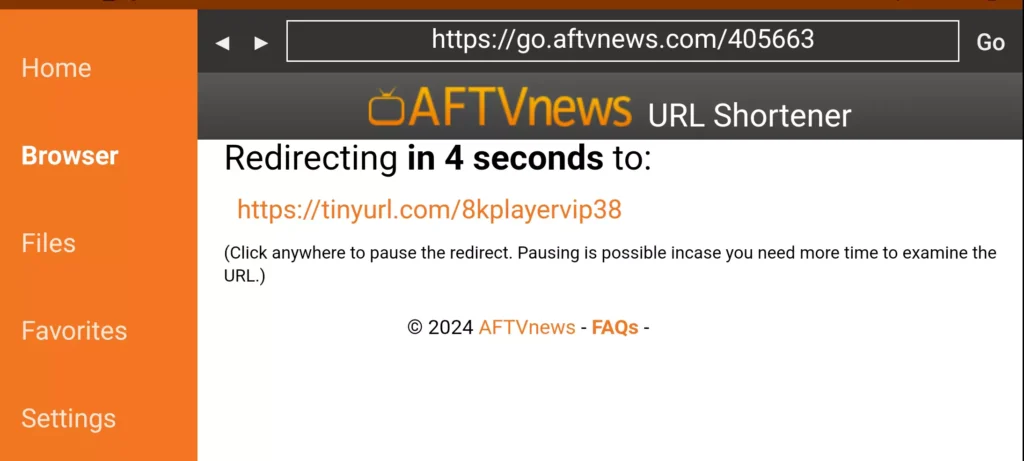
5. Wait for the redirect page (4–6 seconds)
6. If needed, click the download link manually
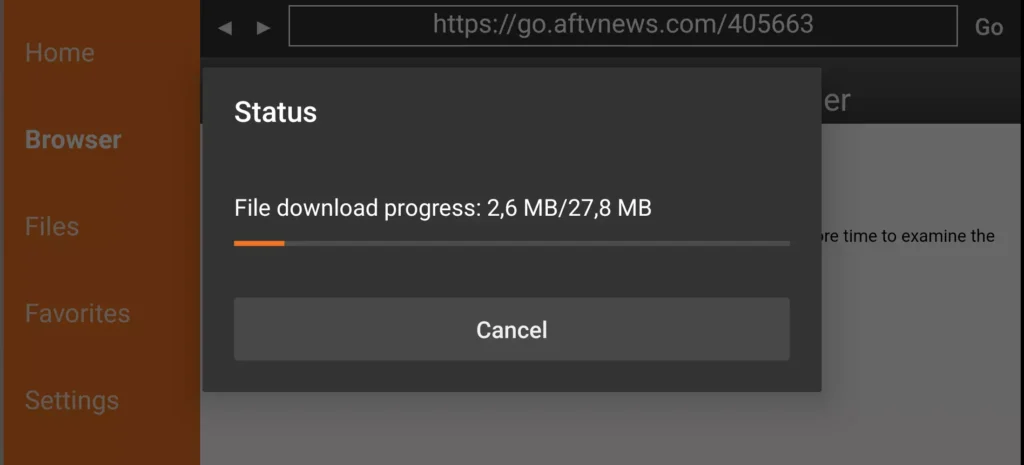
7. Wait for the APK to finish downloading
8. Select Install
✅ Hot Payer is now installed.
Step 4 – Open Hot IPTV App
After installation:
1. Open Hot Player IPTV.
2. The app will display your MAC Address on the screen.
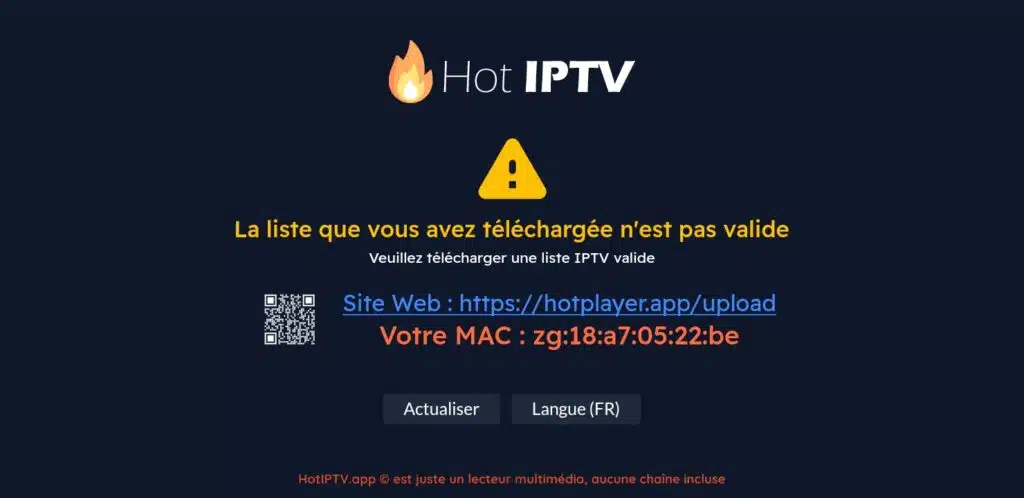
3. Keep this MAC address safe — you’ll need it for activation
This code links your device to your IPTV account.
Option 2: Activate Hot IPTV Yourself
1. Open this page in your browser: https://hotplayer.app/upload
2. Enter your MAC Address.
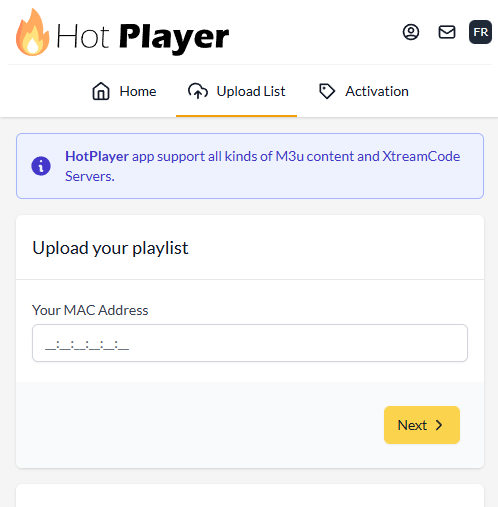
3. Submit the form.
Your Hot IPTV activation will finish within seconds.
Step 6 – Add M3U Playlist to Hot IPTV
Once activation is done, it’s time to add your IPTV playlist.
1. Choose M3U as your setup method.
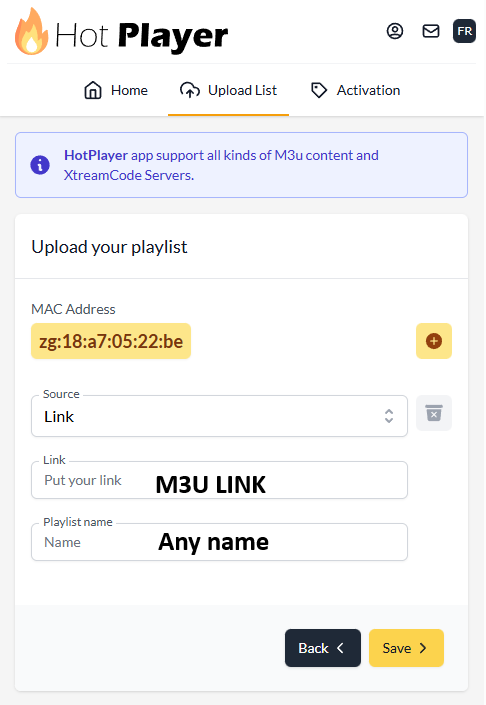
2. Enter the following:
Playlist Name
M3U URL (provided after subscription)
3. Save your settings
This connects your IPTV service to the Hot Player app.