How to Install IPTV Smarters Expert on Windows (Microsoft Store Guide)

This guide explains how to install IPTV Smarters Expert on Windows directly from the Microsoft Store. The app runs natively on Windows, so no emulator is required.

Step 1 – Install IPTV Smarters Expert from Microsoft Store

1. Open Microsoft Store on your Windows PC

2. Search for IPTV Smarters Expert
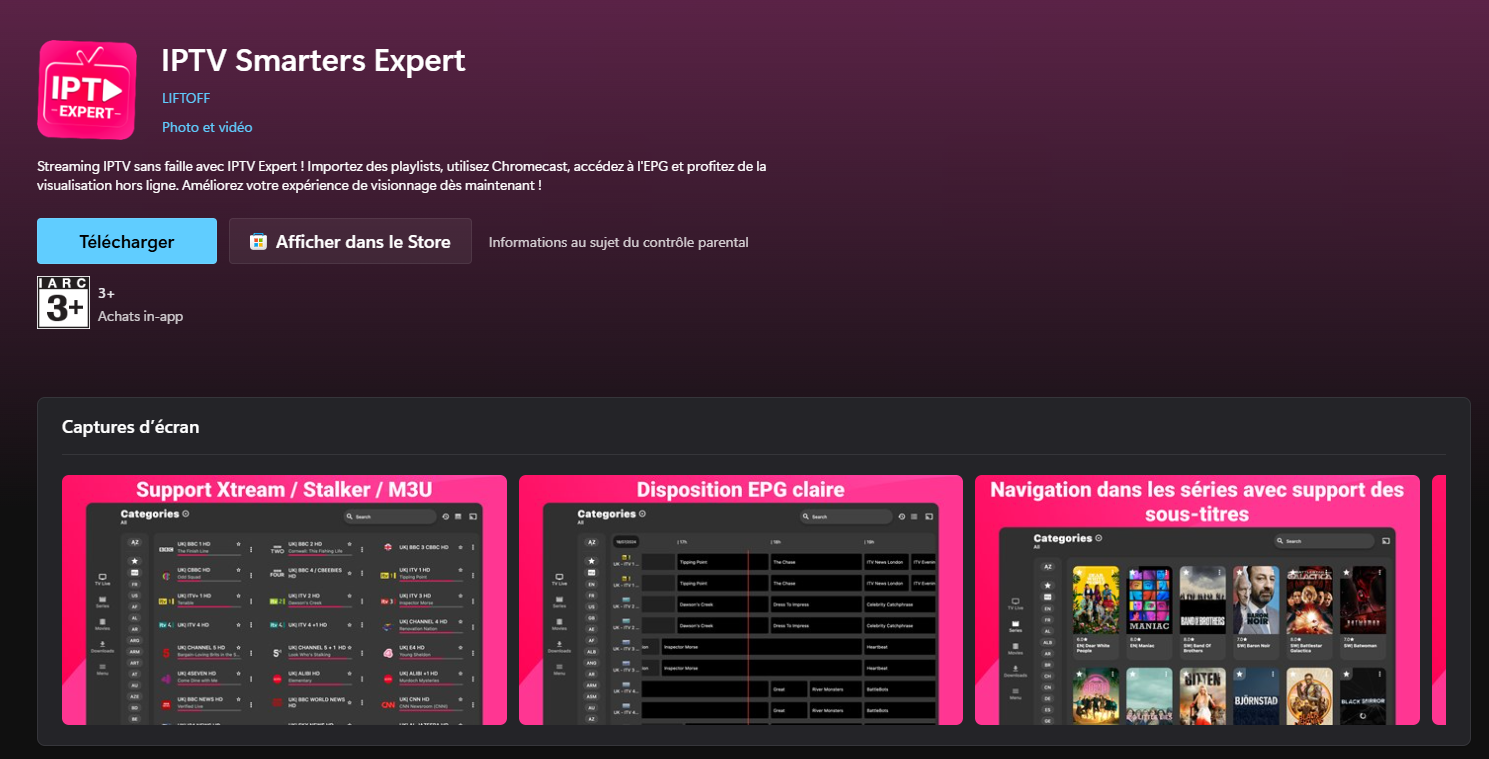
3. Select the app from the results

4. Click Install

5. Wait until installation finishes

Once installed, the app will appear in your Start menu.

IPTV Expert App Setup

1. Open the IPTV Expert app.

2. When the payment screen appears, skip it — the free version is enough to use the service.
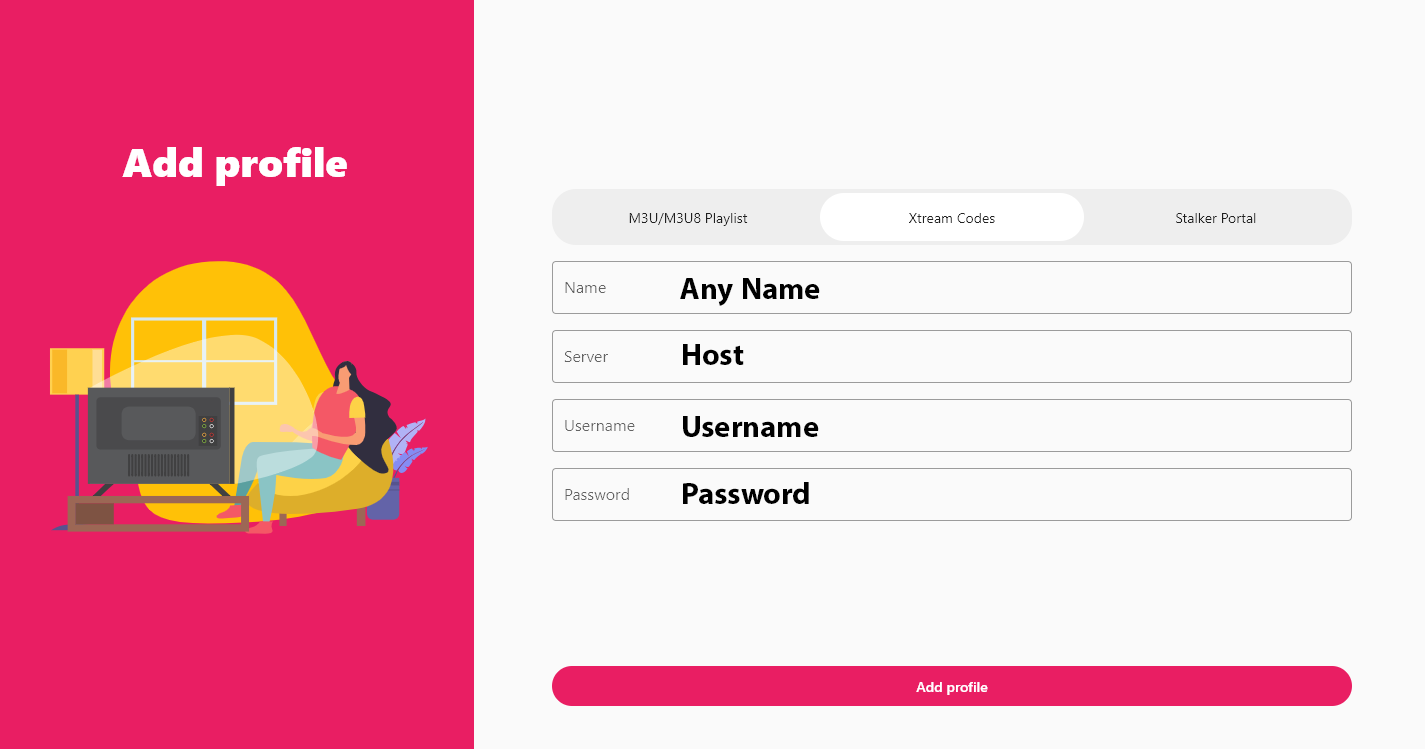
3. Enter your subscription details exactly as follows:

    • Name: Any name (your choice)

    • Server: Your Portal URL (host)

    • Username: Provided with your subscription

    • Password: Provided with your subscription

4. Click Add Profile.

Wait a few seconds while the channel list loads, then start watching.

Why Choose IPTV Smarters Expert?

IPTV Smarters Expert is easy to use and beginner-friendly. It offers:

  • Fast MAC-based activation

  • Simple M3U playlist support

  • Smooth performance on phones, TV boxes, and tablets

  • Quick setup for new users

Can I Use IPTV Smarters Expert on Other Devices?

Yes. IPTV Smarters Expert is also compatible with:

  • Smart TVs

  • Android TV boxes

  • Fire TV Stick (via APK)

  • Some Samsung and LG models

If you’re searching for IPTV Smarters Expert on Firestick or Smart TVs, the same setup process applies.


Anmod om en gratis IPTV-prøve

Indtast din e-mail for at anmode om en gratis IPTV-prøve
Du vil modtage en bekræftelses-e-mail for at bekræfte din adresse, før vi sender dine prøveoplysninger.

Newsletter Form (#4)
Support
Livechat Online

Support og gratis prøve

Kontakt os for teknisk support
eller for at anmode om en gratis IPTV-prøve.

WhatsApp-support
Hurtig support
Telegram-support
Hurtig support
Livechat
Hurtig support
E-mail-support
Langsommere respons